Auxiliary Savings Tutorial
How to open an Auxiliary Savings Suffix on the Mobile App and Online Banking.
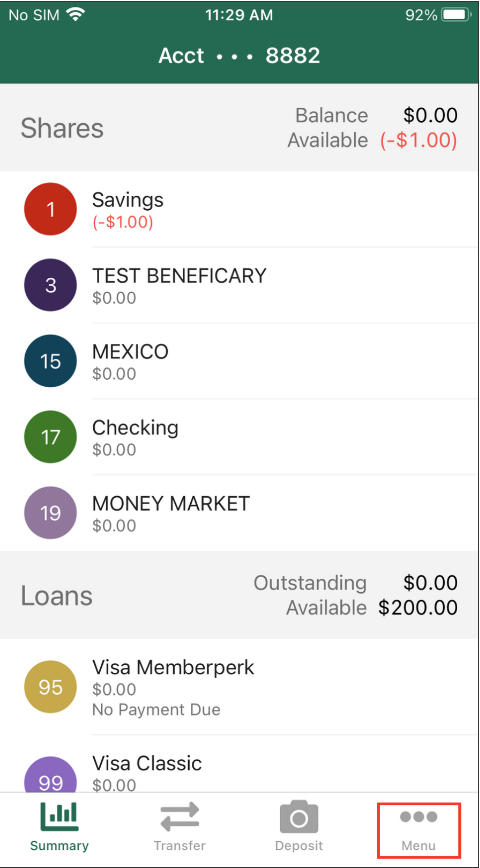
Step 1: Open your Members 1st app or log in to Online Banking and click on the menu button (click here to learn how to enroll for online banking).
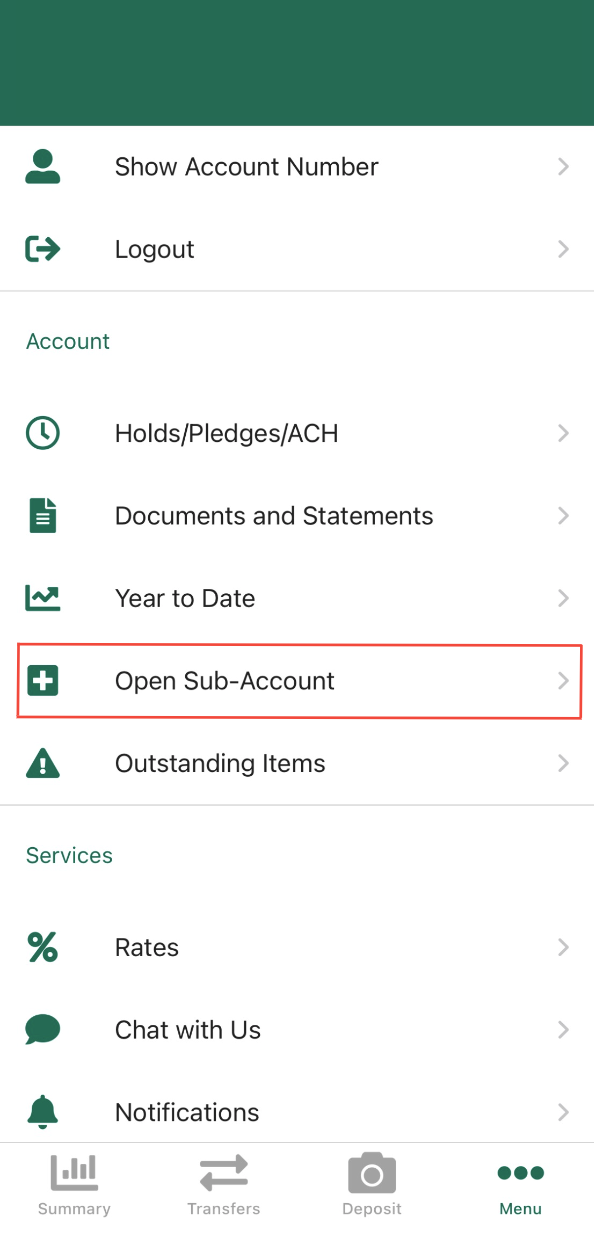
Step 2: Scroll down and select "Open Sub-Account."
Step 3: Select which suffix you would like to open.
Auxiliary Shares - Use auxiliary accounts to designate finances for particular budget reasons. For example, you can save for taxes, insurance, vacation, and home improvement without having to combine the funds.
Money Market - Money market accounts combine some features of checking and savings accounts but have a higher (APY). For current rates, visit m1cu.org/rates.

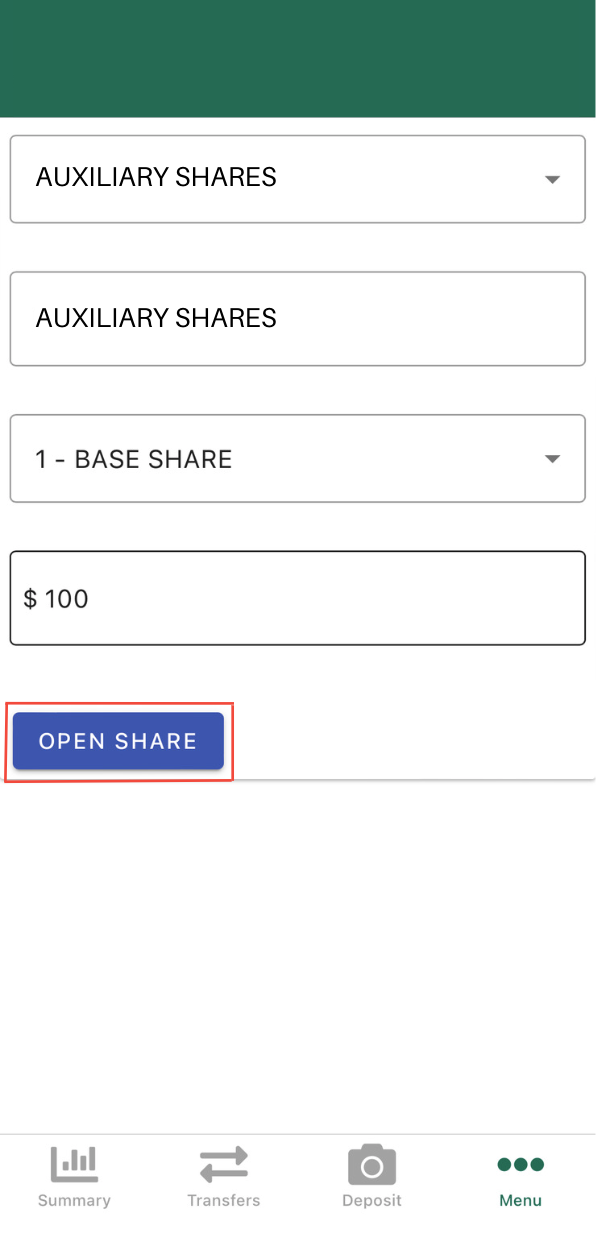
Step 4: After selecting your suffix, name the account, select which suffix the funds will be drawn from, and choose the dollar amount and select "Open Share." Your new suffix will now be found on the home screen with your other accounts.